
White spots on phone screens usually appear as bright dots or patches caused by pressure damage to the LCD, stuck or dead pixels, moisture trapped inside the display, backlight defects, or a slightly bent frame. Some pressure marks fade on their own within 24–72 hours if you remove the source of pressure, while stuck pixels sometimes respond to pixel‑fixing apps.
Dead pixels, severe backlight problems, and liquid damage often need a full screen replacement. This guide explains how to diagnose the cause, try seven safe fixes, compare DIY versus professional repair costs, and prevent future display damage.
Why You’re Seeing White Spots on Your Phone
You unlock your phone and notice a bright patch that refuses to go away. It’s there in every app, easy to spot on dark images and annoying during videos. Many people assume this means an automatic screen replacement, but that isn’t always true. Some marks are reversible; others are not.
If you’re dealing with white spots on mobile screen, the real question is whether they come from temporary pressure on the display, a handful of misbehaving pixels, moisture, or deeper hardware damage. Once you know that, you can choose a fix that matches the problem instead of guessing.
This guide walks you through every step: how to identify the type of spot you have, safe at‑home methods that actually help, when you should stop experimenting and see a technician, what repairs typically cost in 2026, and how to avoid the same issue in future.
What’s Behind Those Bright Patches on a Phone Display?
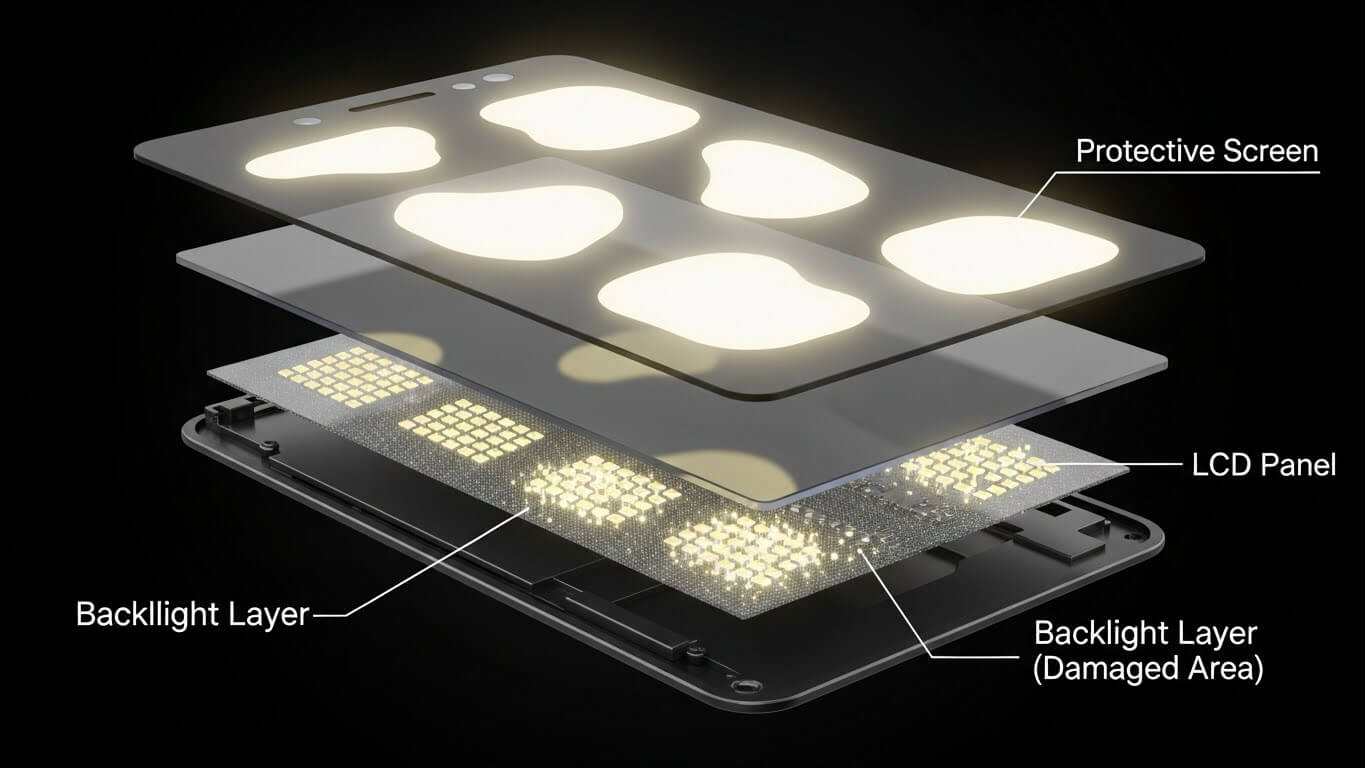
A modern phone screen is a stack of components: protective glass, touch sensor, display panel (LCD or OLED), and, for LCDs, a backlight layer. When any part of this stack is stressed or fails, you see visual defects like bright dots, white patches, or cloudy areas.
Pressure Marks in the LCD Layer
Pressure is a common cause of bright patches:
- Tight jeans or back pockets
- Heavy items in a bag are pressing on the phone
- Overly rigid or cheap cases that squeeze the edges
- Accidentally sitting or sleeping on the device
The liquid crystals in an LCD panel are designed to twist and block light in controlled ways. Constant force can push these layers together, letting more backlight through, so the area looks brighter than it should.
Typical signs:
- The patch is larger than a single pixel and irregular in shape
- More visible on light backgrounds than dark ones
- Often appears when the device is under load
- May slowly fade if pressure is removed
Tiny White Dots from Stuck or Dead Pixels
Each pixel contains red, green, and blue subpixels. When the transistor controlling a subpixel fails, it may:
- Stay permanently lit (stuck pixel)
- Never light at all (dead pixel)
A stuck pixel that locks on all three subpixels can look like a small pure white dot, especially in dark scenes.
Typical signs:
- Very small, pinpoint bright dot
- Fixed position that never moves
- Visible on every app and background
- Does not change shape when the screen is off
Moisture Intrusion and Liquid Damage
If water enters the display assembly, it can:
- Alter the refractive properties of layers
- Leave mineral residue
- Corrode tiny circuits that drive pixels
This often happens after drops in water, heavy rain, or long‑term humidity exposure. Moisture spots tend to look more “holographic” than clean white.
Typical signs:
- Shimmering, rainbow, or cloudy zones rather than clear dots
- The pattern may grow or shift over days
- Often accompanied by other issues (ghost touches, random restarts)
- It may be worse when the phone warms up
Backlight Hotspots on LCD Screens
LCDs rely on a backlight to illuminate the pixels. If:
- An LED in the backlight assembly misbehaves, or
- Diffuser films crease, warp, or separate,
You get localised bright areas, most obvious on dark backgrounds.
Typical signs:
- Bright patches that stand out on black or dark grey screens
- Little change on white backgrounds
- Size and position rarely change over time
- Often worsens gradually the underlying damage spreads
Frame Bends and Assembly Stress
A slightly bent frame or poorly installed replacement screen can also create uneven pressure.
Signs of mechanical stress:
- Patches near corners or frame edges
- White spots appear right after a hard drop or a cheap repair
- Subtle gaps between display and frame
- Phone rocks when placed on a flat surface
In these cases, the display is being squeezed even when you’re not touching it.
How to Identify the Type of White Spot You Have
Before you try any fix, you want to know whether you’re dealing with pixels, pressure, moisture, or backlight issues. A few simple tests can narrow it down.
Use the Screenshot Test to Separate Hardware from Software
This is your first and most important check.
- Open a screen where the white spots are obvious.
- Take a screenshot using your usual button combo.
- Send that screenshot to another device or open it on a computer.
- Look carefully at the image.
If the spots do not appear in the screenshot on the other device, the problem is in the display hardware, not what the system is drawing. If they do appear inside the screenshot, you may have a software rendering issue, a theme problem, or damage to that specific image file.
Most people with bright dots or patches find they are hardware‑related.
Show Solid Colours to Reveal Patterns
Next, display solid colours full‑screen. You can use:
- A screen‑test app, or
- Single‑colour images viewed in your gallery.
On different backgrounds:
- Black: stuck white pixels and backlight hotspots stand out.
- White: pressure marks and faint cloudy areas emerge.
- Red/green/blue: highlight specific stuck subpixels.
Note which backgrounds make your issue most visible; that clues you in on whether it’s a pixel‑level or larger‑area problem.
Gently Test for Pressure Sensitivity
Only do this lightly and only once or twice.
- Show a dark background.
- With no case or protector, place a soft cloth over the area.
- Apply very light pressure beside the bright spot, not directly on it.
- Watch for any flicker, change in brightness, or small movement.
If the patch reacts to slight flexing, you probably have pressure‑related LCD distortion. If it never changes at all, odds are higher it’s pixels or backlight.
⚠️ Too much pressure can create newdamage. If you’re unsure how gentle to be, skip this test.
Observe the Spots Over a Few Days
If the phone is still usable, monitor the areas for 24–72 hours while:
- Avoiding tight pockets
- Not sitting on the device
- Keeping it out of heat and moisture
Watch for:
- Improvement: common with mild pressure spots.
- No change: typical of dead pixels and many backlight problems.
- Gradual spread: often associated with moisture or internal delamination.
This time‑based check helps you decide whether low‑risk fixes are working.
Simple At‑Home Fixes for Bright Dots on a Screen
Start with low‑risk options and only escalate if you see no improvement.
Remove Pressure Sources and Let the Screen Rest
If your diagnosis points to pressure marks:
- Take the phone out of its case.
- Remove any screen protector, especially a new one.
- Place the phone screen‑up on a flat, soft surface.
- Avoid leaning objects on it or putting it in tight clothing.
- Leave it alone as much as possible for at least 24 hours.
- Recheck the spots; continue up to 72 hours if they’re improving.
Mild pressure spots often fade significantly with nothing more than rest and good handling.
Try a Pixel‑Fixing Utility for Tiny White Dots
For what looks like a single stuck pixel:
- Install a reputable pixel‑repair or screen‑test app,
- Run its colour‑cycling tool over the problem area for 30–60 minutes,
- Check for change, and repeat once or twice if you see partial progress.
These tools are safe to try and cost little or nothing. They’re most helpful when you catch a stuck pixel early, and the surrounding area looks healthy.
Carefully Massage a Light Pressure Mark
On LCDs with a small fresh pressure patch:
- Turn the phone off.
- Lay a clean microfiber cloth over the display.
- Use a fingertip to move in tiny circles directly over the bright area with barely any pressure.
- Stop after about a minute, then let the phone rest for 10–15 minutes.
- Turn it on to check for improvement.
If there’s no change or the spot worsens, discontinue. This technique can help in borderline cases but is not risk‑free, so restraint matters.
Handling Moisture‑Related or Backlight Problems
When water or backlight components are involved, treating your phone like it has a simple pressure spot can make things worse.
Dry Out Moisture as Safely as Possible
If spots appeared shortly after liquid exposure:
- Power the phone off immediately.
- Remove any case, SIM tray, and memory card.
- Gently dry the exterior with a lint‑free cloth.
- Place the phone in a sealed container with silica gel or a dedicated drying kit.
- Leave it for 48–72 hours without turning it on.
- After drying, power on and reassess the display.
This won’t undo corrosion that’s already begun, but it can stop ongoing damage and sometimes shrinks liquid marks.
Recognise When the Backlight or Panel Is Failing
Signs that a full display assembly is in trouble:
- Fixed, bright patches on dark screens that never change
- Multiple uniform hot‑spots rather than irregular shapes
- No response to rest or gentle flex tests
- Additional symptoms, like flicker or uneven brightness bands
In these cases, pixel apps, massage, and waiting won’t solve the underlying hardware fault. A replacement display is usually the only meaningful option.
What Screen Repairs Typically Cost in 2026
Repair pricing varies by region and model, but some broad ranges are consistent.
- Recent flagship phones (OLED): roughly $200–$300+ for an official or high‑quality replacement.
- Mid‑range Android phones: around $120–$200.
- Budget devices and older LCD models: often $80–$150.
Third‑party shops may quote lower prices than official channels, but the quality of parts and workmanship can vary. Extended protection plans like AppleCare+ or carrier insurance often reduce out‑of‑pocket costs to a smaller service fee, which may make professional repair more attractive.
Comparing repair cost to your phone’s current market value helps avoid overspending on a device that’s nearing the end of its useful life.
How to Prevent New White Marks on Your Display
Avoiding white dots and bright patches is usually easier and cheaper than fixing them.
Choose a Case That Protects Without Squeezing
Good cases:
- Protect against drops
- Don’t flex or bow the display
- Add a small lip above the screen
- Don’t create pressure points near the edges
If a case makes the glass look warped or the touchscreen respond oddly, replace it.
Install Screen Protectors Cleanly
A quality tempered glass protector can:
- Spread the force of minor impacts
- Reduce scratch risk
- Make it easier to wipe away smudges
For best results:
- Clean the screen carefully first,
- Apply in a low‑dust area,
- Follow the included alignment method.
Visible dust under a protector can look like small spots; if that bothers you, it’s worth reapplying.
Avoid Physical and Temperature Stress
Simple habits go a long way:
- Don’t sit on phones kept in pockets.
- Don’t toss keys or other hard items into the same compartment.
- Don’t leave phones on hot dashboards or in freezing cars.
- Avoid rapid hot‑cold shifts when possible.
These steps reduce both pressure risk and the chance of adhesive or layer separation inside the screen.
Deciding Between Repair and Replacement
To decide whether to fix or upgrade:
- Check your phone’s age: under two to three years is more repair‑friendly.
- Consider overall health: battery, performance, and storage space.
- Get at least one repair quote from a trusted shop.
- Look up current resale prices for your model.
If a reliable repair is substantially less than half the phone’s value and the device still meets your needs, fixing the display often makes sense. If costs creep close to or above that threshold, or if the phone is already struggling, putting that money toward a newer model may deliver better long‑term value.
Brand‑Specific Notes: iPhone, Samsung, and Budget Android
Recent iPhones with OLED Screens
Newer iPhones use OLED technology, which:
- Shows true blacks and high contrast,
- Can suffer from burn‑in or image retention,
- Usually costs more to replace than LCD panels.
Bright patches on these displays often signal either localized pressure damage or panel faults. Apple’s official repairs are costly, but AppleCare+ can significantly reduce the amount you pay.
Samsung Galaxy and Other AMOLED Devices
Many premium Android phones also use AMOLED:
- Individual pixels emit their own light,
- Certain failures can create odd colour tints with bright specks,
- Replacement parts are relatively expensive.
Warranty terms matter: damage judged to be a manufacturing defect may be covered; drop and liquid damage typically are not unless you have an extended plan.
LCD‑Based Budget and Mid‑Range Phones
Affordable devices still rely heavily on LCD:
- More prone to classic pressure marks and backlight leaks,
- Replacement parts are cheaper and more widely available,
- DIY kits exist, but can void the manufacturer’s warranty.
For these phones, a cost‑effective third‑party replacement is sometimes the most practical way to deal with persistent bright spots.
Conclusion
White spots on phone screens range from temporary pressure effects to permanent hardware failures. The difference lies in diagnosis, not guesswork. Many issues resolve with time, pressure relief, or minor adjustments, while others require professional intervention.
By understanding the underlying cause, you can avoid unnecessary repairs, reduce risk, and make informed decisions about your device. A methodical approach saves both money and frustration.
FAQs About White Dots on Smartphone Screens
Q1. Can bright white spots on a phone screen get worse over time?
Yes, they can, depending on the cause. Pressure marks may stay stable or slowly worsen if the device continues to flex in the same place. Moisture‑related patches often expand as corrosion spreads or water moves between layers.
Dead or stuck pixels usually stay the same size, but additional nearby pixels can fail if the underlying issue is a panel defect or impact damage. If you see a white area growing day by day, it’s wise to stop DIY experiments and have the phone inspected.
Q2. How long should I wait to see if a pressure spot will fade on its own?
If a bright patch appeared after a known pressure event—like sitting on your phone or using a very tight case—removing that pressure and resting the device for 24–72 hours is reasonable. Many mild LCD pressure spots show noticeable improvement in that window.
If nothing changes after three days of careful handling, the distortion may be permanent. At that stage, continuing to apply pressure, tap, or bend the phone is more likely to cause extra harm than help.
Q3. Are all white spots on displays fixable without replacing the screen?
No. Some issues, such as mild pressure marks or a single stuck pixel, occasionally respond to rest or pixel‑fixing software. However, dead pixels where the transistor has failed, serious backlight problems, and mechanical or liquid damage that has altered internal layers usually cannot be reversed with at‑home methods.
In those cases, the only reliable remedy is replacing the display assembly. Knowing which category your problem falls into helps you avoid wasting time and money on ineffective fixes.
Q4. Will a screen protector stop white spots from forming?
A screen protector mainly guards against scratches and helps distribute the force of light impacts. It doesn’t directly prevent all types of white spots, especially those caused by severe drops, bends, or internal component failure.
However, a properly installed tempered glass layer can reduce the chance of localized pressure damage from everyday bumps and can keep the glass surface from cracking as easily. It’s a helpful part of a protection strategy, but not a guaranteed shield against every display defect.
Q5. Does using a phone in the rain or bathroom cause these bright patches?
Occasional light moisture on the glass that you wipe away quickly usually isn’t a major risk. Problems start when water finds its way past seals or into cracks and then gets trapped inside the screen or around connectors. Environments with heavy steam, high humidity, or direct splashes raise that risk, especially for devices without robust water resistance.
If you notice new white or rainbow patterns after water exposure, powering off the phone and drying it thoroughly before reuse gives you the best chance of avoiding permanent damage.